Compatible with Chrome and Edge
Instruction Guide
We have a simple tutorial guide which explains the features of the software extension and what each button inside the extension does. Read our tutorial and welcome guide on how to use the extension to the fullest. Use all the features of this browser software.
If you are interested in other web extensions to install, you might wish to check out the Microsoft Bing Search with Rewards extension.
Microsoft Bing Search with Rewards Extension
It allows you to complete daily offers to get points.
Track the number of points you have currently and the rewards you can redeem with these points.
The ways to get points & get rewarded is search with Bing, browse with Microsoft Edge and shop at the Microsoft and Windows stores to earn rewards.
Sponsored Link:
Other useful extensions
Another extension which would be useful to install is the iCloud bookmarks extension.
It allows to keep your Chrome bookmarks on Windows synced up with the Safari bookmarks on your iPhone, iPad, and Mac.
iCloud will store your website bookmarks so it is accessible even on your iPhone and Mac.
Try these other two extensions and see if it will boost your daily productivity.
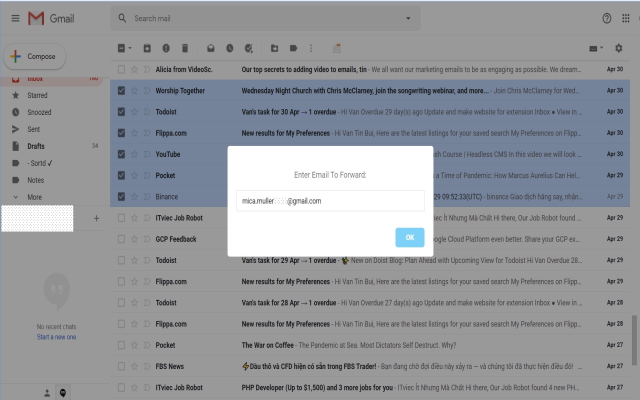
- Select Emails you want to forward
- Select multiple emails to forward
- Choose the email address you wish to forward emails to
Features:
After installing the extension. You click on the icon and can begin forwarding multiple emails at once.
Email forwarding is a service that allows you to take your email with you wherever you go.
Email forwarding services allow you to forward all of your incoming mail to another email address, usually one that you have set up yourself. This is useful if you have moved or changed jobs, but still need to receive your mail at a new location.
How does it work?
When you sign up for an email forwarding service, your existing email address (for example, "[email protected]") will be updated with a new address (for example, "[email protected]"). All of the messages sent to your old address will be forwarded to the new one automatically.
You can forward emails from your inbox to another email address using the settings in your account.
For example, let's say that you have a personal account and a work account. You want to forward all of your personal emails to your work email address, but leave them in your personal inbox.
You can do this by creating a filter for each account so that every time an email comes into one of them, it forwards it to the other one.
In Gmail:
Click Settings .
Click on the Filters and Blocked Addresses link. This will take you to your Filters page.
Click New Filter at the top right of the page. A new filter editor will open.
Choose Create filter with these search terms from the drop-down menu under Where does it match? If you type in something like "Edit", it will show all emails that contain that word anywhere in the message (header or body).
Next, choose Forward it to someone else's email address from under Do the following:
Tutorial:
- Install the Extension
- After installing the extension, click on the icon on the toolbar.
Sponsored Link: